All Category

How to add a new product

Account

How to add a new product

General Information,Tell Customers What You Are Selling

Start by entering the basic information about the product. Add a clear and accurate Product Name that customers can easily understand. Next, enter the Slug, which is the simple URL-friendly version of the product name. For example, a product called “Women Black Leather Handbag” could use women-black-leather-handbag as its slug.


Add a Short Description that quickly explains what the product is and its main benefit. Then use the full Description section to provide complete information such as features, materials, size, specifications, benefits, compatibility, package contents, care instructions, or any other details the customer should know before purchasing. Finally, select the correct Brand when applicable. Always make sure the information is accurate and easy to understand.


2- Price, Set the Product Cost and Selling Price

Enter the Base Cost, which represents what the product costs you to purchase or source. This helps you understand the cost behind the product.


Next, enter the Regular Price, which is the normal price associated with the product. If you are offering the item at a promotional or discounted price, enter the appropriate Sale Price as well.


After entering the prices, choose whether the product is Taxable or Non-Taxable. If it is taxable, select the appropriate Tax Class. Review your numbers carefully before continuing because incorrect pricing or tax information can cause problems during checkout.


3- Images — Show the Product Clearly

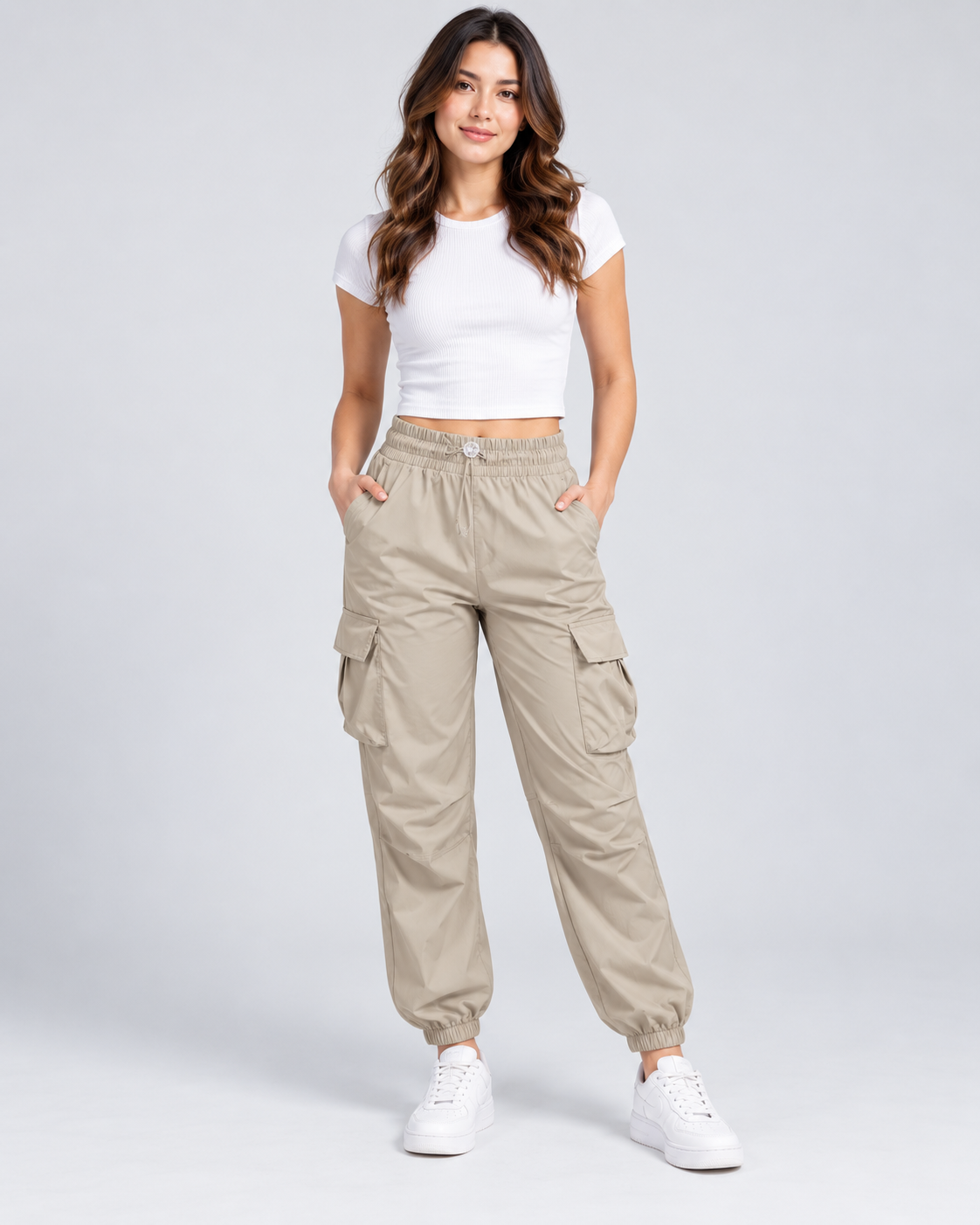
Upload the Feature Image first. This is the primary image customers will see when they discover your product, so it should clearly show the item.


Then use the Additional Image Gallery to upload more pictures. Whenever possible, show different views such as the front, back, sides, close-ups, packaging, important details, and the product being used.


Use bright, clear, high-quality images with a clean background. Avoid blurry photos, unnecessary text, distracting watermarks, or images that do not accurately represent the item. Strong product photography helps customers understand what they are purchasing and builds confidence in your store.


4- Inventory — Tell D-Shopp How Much Stock You Have

Enter the product's SKU (Stock Keeping Unit). An SKU is a unique code you use to identify and organize the item. Using a consistent SKU system makes inventory management easier.


Enter the Quantity currently available for sale. Select the appropriate Unit, such as piece, bottle, box, pack, pair, or another applicable unit. Then enter the Unit of Measurement when required.


Keep inventory information updated. Accurate quantities help prevent customers from purchasing products that are no longer available and make your order management more reliable.


5- Tags & Labels — Help Customers Discover the Product

Add relevant Tags that describe the product. Tags can include important keywords related to the product type, style, use, material, audience, or other searchable characteristics. For example, a running shoe could include tags such as running, sports, mens, sneakers, and shoes.


You may also select an appropriate Label or Badge such as Best Seller, New Arrival, Limited Edition, Eco-Friendly, Top Rated, Sale, Hot Items, Used, or another available label.


Only use tags and labels that genuinely match the product. Do not add unrelated keywords just to gain visibility. Accurate tags improve search results and make it easier for the right customers to discover the item.


6- Attributes & Variants — Create Sizes, Colors, and Other Product Options

Use this section when the product has different versions. For example, the same shirt may be available in Small, Medium, and Large, or the same item may come in Black, White, and Red.


Select the Item Size and Item Color when applicable. If a specific variation changes the product price, enter its Additional Price or Extra Cost. Enter the correct Stock Count for that specific variation and upload an Attribute Image when an image will help the customer identify the option.


You can also use Attribute Name and Attribute Value to add additional characteristics supported by the product. Each variation should represent a real purchasable option and should have accurate stock information. If another combination is needed, create another variant instead of combining unrelated options into one variation.


7- Categories — Put the Product in the Correct Section

First select the main Category that best represents the product. Then select the corresponding Subcategory, followed by the most specific Child Category available.


For example, a product might follow a path such as Beauty and Elegance → Hair Care → Hair Wigs.


Choose the most accurate category path possible. Proper categorization helps D-Shopp place the product in the correct section, improves filtering and navigation, and makes it easier for customers to find your item through search and category browsing.


8- Delivery Options Choose How Customers Can Receive the Product

Select the delivery methods that actually apply to the product. Same-Day Delivery can be used for eligible local orders within D-Shopp's local delivery service area. For nationwide shipping, select either Free Shipping or Standard Delivery, depending on how you want the product shipped.


A product can use Same-Day Delivery together with one nationwide shipping option. In other words, select Same-Day + Free Shipping or Same-Day + Standard Delivery when both local and nationwide delivery are available. Do not select delivery options that cannot actually be fulfilled for the item.


Delivery information is important because customers need to know how they can receive the product before completing their purchase.


9- Product Meta Improve Search and Social Sharing

Product Meta provides information that helps search engines and social platforms understand how your product should be presented.


Under General Meta Info, enter a clear Meta Title and concise Meta Description that accurately describe the product. Use important product keywords naturally rather than repeating unnecessary keywords.


The Facebook Meta section controls information used when the product is shared on Facebook, while Twitter/X Meta controls how it can be presented when shared on X. Good metadata can improve how your product appears when customers find or share it online.


10- Product Settings, Complete the Final Product Rules

Use Minimum Quantity of Purchase to determine the smallest quantity a customer is allowed to purchase in one order. Use Maximum Quantity of Purchase to control the largest quantity that can be purchased in one order.


Turn on Refundable only when the product is eligible for returns or refunds according to your store and D-Shopp policies. Turn on Inventory Warning when you want the system to alert you as inventory becomes low.


Review these settings carefully because they affect customer purchasing limits, returns, and inventory management.


After completing all sections, review the entire product before creating or publishing it. Check the product name, descriptions, prices, images, quantity, SKU, variants, tags, categories, delivery options, meta information, and product settings. Make sure that what the customer sees matches the actual product you will provide.


11- Once everything is correct, click Create Product to complete the listing.


Important Vendor Reminder


The quality of your listing directly affects the customer's shopping experience. Do not rush through the product creation process. Clear descriptions, accurate prices, correct inventory, strong images, proper categories, and valid delivery options help customers make purchasing decisions with confidence.


Accurate product information means fewer customer questions, fewer order problems, better search visibility, and a more professional D-Shopp store.


Back to Help Center